PageBuilder Template Import/Export — Store Manager Guide
This guide explains how to use MageOS PageBuilder Template Import/Export from the Magento Admin panel. No coding knowledge required.
Overview
MageOS PageBuilder Template Import/Export extends the native Magento PageBuilder template system with the ability to move templates between Magento instances. Templates can be:
- Exported as a
.zipfile and shared manually between environments. - Imported from a local
.zipfile directly through the admin panel. - Pulled remotely from a configured Dropbox storage, enabling a centralised repository of templates shared across multiple Magento instances.
Exporting Templates
Go to Content > Elements > Templates. For each template in the grid, use the Actions column to export it. The result is a .zip file you can download locally and share with other instances.
Importing Templates
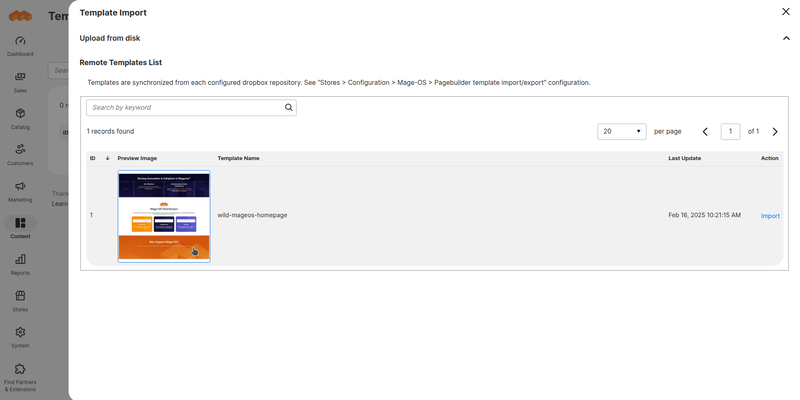
From the same Content > Elements > Templates page, click the Import Template button at the top of the grid. A modal opens with two options:
Local import
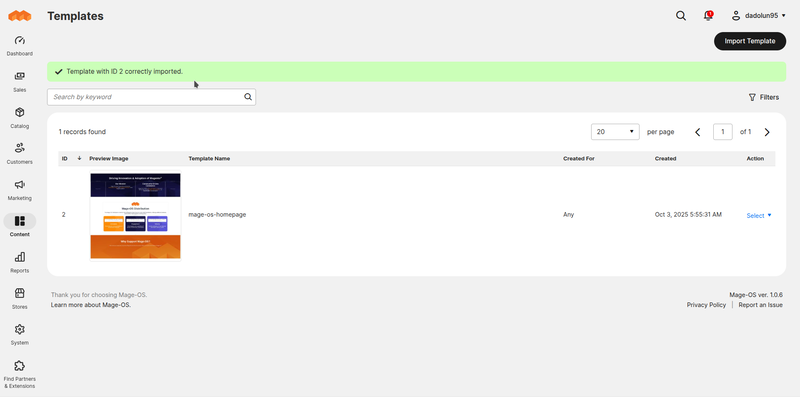
Click Upload in the modal, select a .zip file previously exported from another instance, and confirm. The template is imported immediately and appears in the grid.
Remote import (Dropbox)
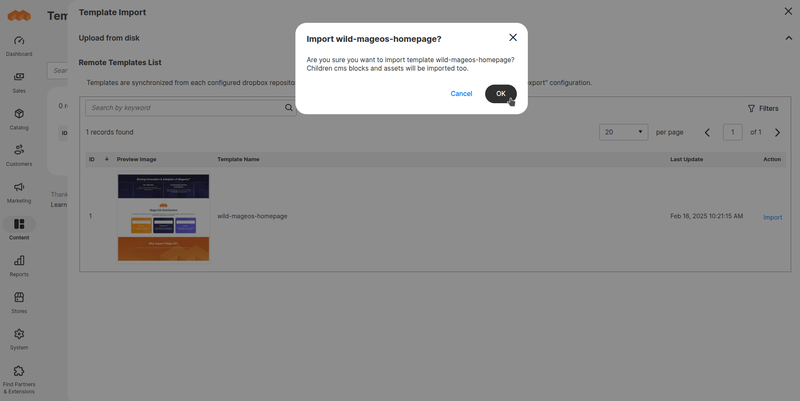
If one or more Dropbox repositories have been configured (see Configuration below), the modal also lists all templates available in those remote repositories. You can filter the list and click Import on the Action column of any remote template to pull it into the current instance.
Applying an Imported Template
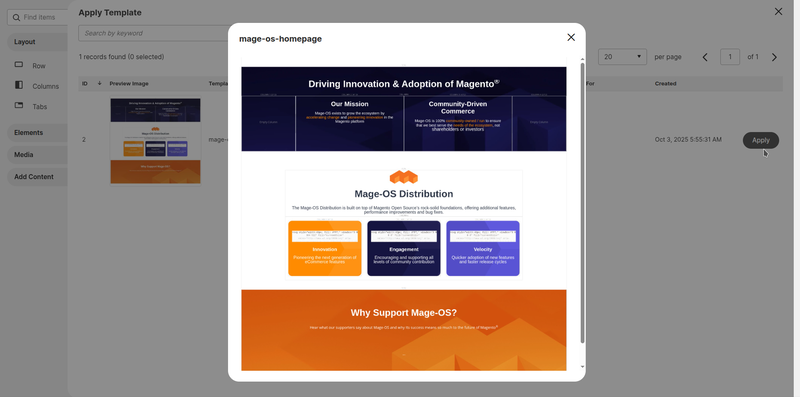
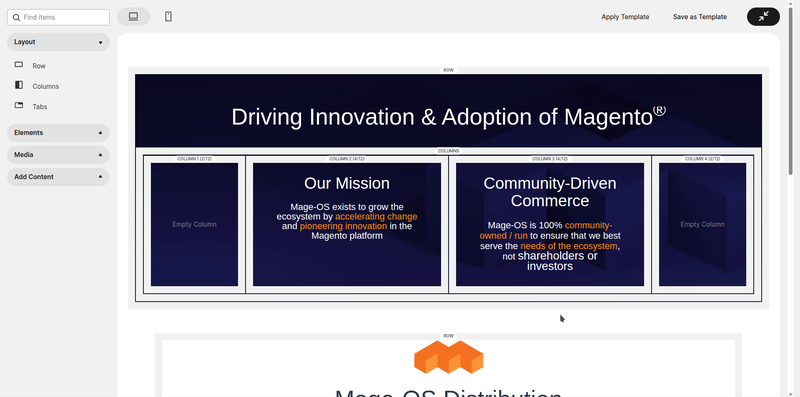
Once imported, templates are available in the PageBuilder panel like any other template. Open a Page Builder-enabled content area, click the Templates icon, and select the imported template to apply it.
Configuration
Go to Stores > Configuration > General > Content Management > PageBuilder Template Import/Export.
General settings
| Option | Description |
|---|---|
| Enable | Enables or disables the module. Configurable at global scope. |
| Sync remote templates by cron | When enabled, remote template lists are synchronised once per day at midnight. When disabled, synchronisation happens immediately after configuration save. Cron mode is recommended for large remote repositories. |
| Dropbox repositories | Multi-row configuration for adding one or more Dropbox apps as remote template sources. |
Configuring a Dropbox repository
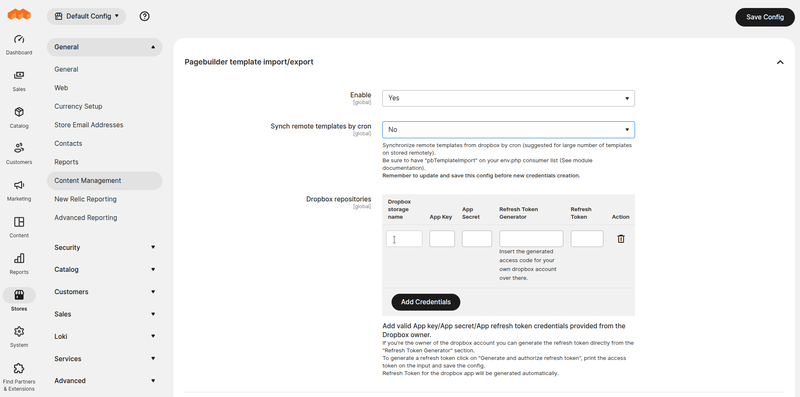
Dropbox repositories are added as rows in the Dropbox repositories multi-row configuration. Each row requires:
- Name — a label to identify this connection.
- App key and App secret — found in the Dropbox developer console at dropbox.com/developers/apps, or provided by the repository owner.
- Refresh token — see below.
If you own the Dropbox account
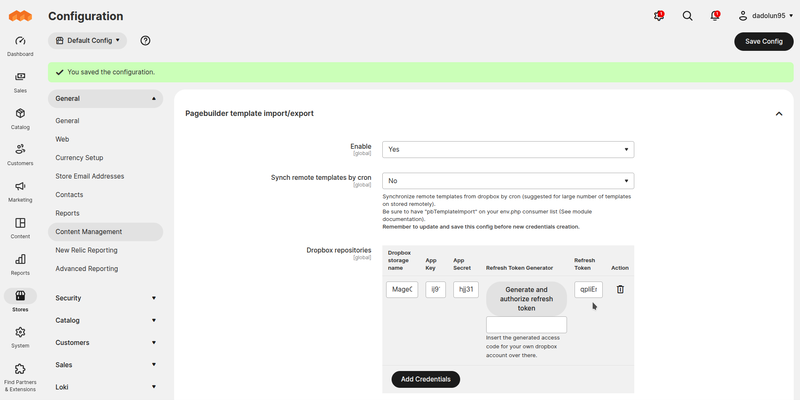
- Fill in Name, App key, and App secret.
- Click Generate and authorise refresh token and follow the instructions to obtain a one-time access code.
- Paste the access code in the input below the Refresh Token Generator column and click the button.
- Save the configuration with the main Save button.
- If no errors occurred, the fifth column of the row now shows the generated refresh token.
If a vendor owns the Dropbox account
Fill in Name, App key, App secret, and the refresh token supplied directly by the repository owner.
Creating a Dropbox app
To connect a Magento instance to your own Dropbox account, first create a Dropbox app at dropbox.com/developers/reference/getting-started:
- Choose an API — select Scoped Access.
- Choose the type of access — select Full Dropbox.
- Name the app — e.g.
My Mage-OS Template Storage.
Dropbox app permissions and webhooks
In the Dropbox app settings, grant the following permissions:
files.metadata.readfiles.content.read
If you manage the Dropbox space directly, you can also configure a webhook for real-time synchronisation. Add the following endpoint under Webhook URIs in the app settings:
https://www.mysite.com/pagebuildertemplateie/template_remote/sync
When the webhook is active, any change in the Dropbox folder is reflected in Magento immediately without waiting for the scheduled cron. If you do not own the Dropbox account, ask the repository owner to register the webhook on their end.